Installation
Scene Insight is an editor plugin. It ships as a SceneInsight plugin folder containing two modules: SceneInsightCore (runtime types) and SceneInsightEditor (the editor UI).
Requirements
| Requirement | Detail |
|---|---|
| Engine version | Unreal Engine 5.4 or newer |
| Project type | C++ or Blueprint-only (a prebuilt binary is included) |
| Platform | Windows editor |
From Fab
- Add Scene Insight to your account on Fab.
- In the Epic Games Launcher → Unreal Engine → Library → Fab Library, find Scene Insight and click Install to Engine.
- The plugin is now available to every project on that engine version.
Manual installation (into a single project)
-
Copy the
SceneInsightfolder into your project'sPlugins/directory:<YourProject>/Plugins/SceneInsight/ -
Restart the editor. When prompted to rebuild missing modules, click Yes (only required for source/C++ projects).
Enable the plugin
- Edit → Plugins.
- Search for SceneInsight (Category: Performance).
- Tick Enabled and restart the editor if prompted.
Open the panel
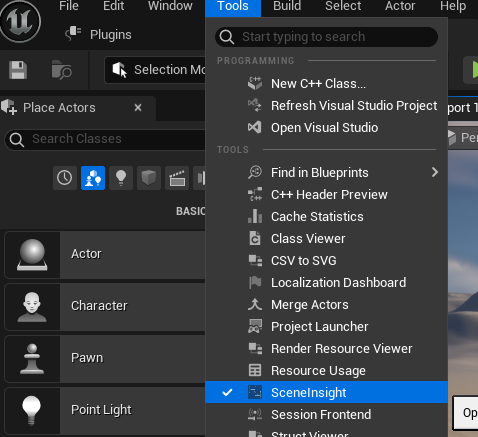
Once enabled, open the tool from the main menu:
Tools → SceneInsight
The panel opens as a dockable tab named SceneInsight.
SceneInsight registers an Open Panel command but ships with no key binding assigned. You can add your own under Edit → Editor Preferences → Keyboard Shortcuts (search for "SceneInsight").
Verify the installation
Open the panel, click Bake, and you should see cluster boxes appear in the viewport. If you do, you're ready for the getting started guide.