Snapshots & Compare
A snapshot freezes the current bake to a file. Later — after you optimize, or in next week's build — you bake again and compare against that baseline to see exactly which zones improved or regressed.
Taking a snapshot
- Bake the level.
- Click Snapshot in the toolbar.
- Choose where to save the
.jsonfile.
The snapshot records, for every cluster: its name, bounds, composite score and full metric set, plus the map name and a timestamp. It's plain JSON, so you can commit it to version control or archive it from CI.
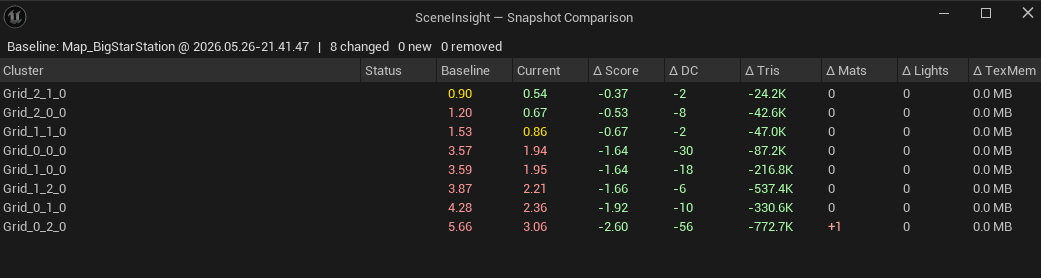
Comparing
- Bake the current state of the level.
- Click Compare and pick a previously saved snapshot.
- Scene Insight matches baseline clusters to current ones and shows a per-zone delta report in a modal.
How clusters are matched
Clusters are matched first by their stable ID, and otherwise by bounds proximity — if two cluster centers are within 5 m (500 cm) of each other they're treated as the same zone. This keeps comparisons meaningful even when a re-bake produces slightly different cluster IDs. Zones that can't be matched are reported as new or removed.
What the delta shows
For each matched cluster:
| Delta | Meaning |
|---|---|
| Score | Baseline → current composite score, and the difference |
| Triangles | Change in triangle count |
| Draw Calls | Change in estimated draw calls |
| Materials | Change in unique material count |
| Lights | Change in light count |
| Texture Memory | Change in texture memory |
Plus flags for clusters that are new (present now, absent in the baseline) or removed (in the baseline, gone now).
Snapshot your level when it's in a known-good state. Make it part of your milestone process: bake + compare before each build to catch a zone that quietly doubled its draw calls.
The composite scores stored in a snapshot reflect the budget profile active at the time it was taken. For an apples-to-apples comparison, keep the same budget profile active when you compare.