Budget Profiles
A Budget Profile is a Data Asset that defines the per-cluster performance limits and metric weights for one target platform. It's what turns raw metrics into a meaningful red/amber/green composite score. Mobile, console and high-end PC have very different ceilings — the budget profile is how you tell Scene Insight which one you're shipping for.
Creating a profile
In the Content Browser, right-click → SceneInsight → Budget Profile (display name SceneInsight Budget Profile). Three presets ship as starting points:
| Preset | Budgets |
|---|---|
| SI_Mobile | Tight |
| SI_Console | Moderate |
| SI_Default | Generous (high-end PC) |
Duplicate one and tune it to your project.

Assigning the active profile
Set the project-wide profile under Edit → Project Settings → Plugins → SceneInsight → Budget → Active Budget Profile.
If no profile is assigned, Scene Insight falls back to built-in default budgets. See Settings.
A single Cluster Volume can carry its own Budget Profile Override, scoring that one zone against a different target than the rest of the level — e.g. a stricter budget for a busy hub, looser for a cinematic-only space.
Budgets
Each budget is the per-cluster ceiling for one metric. A cluster at exactly the budget scores 1.0 on that metric.
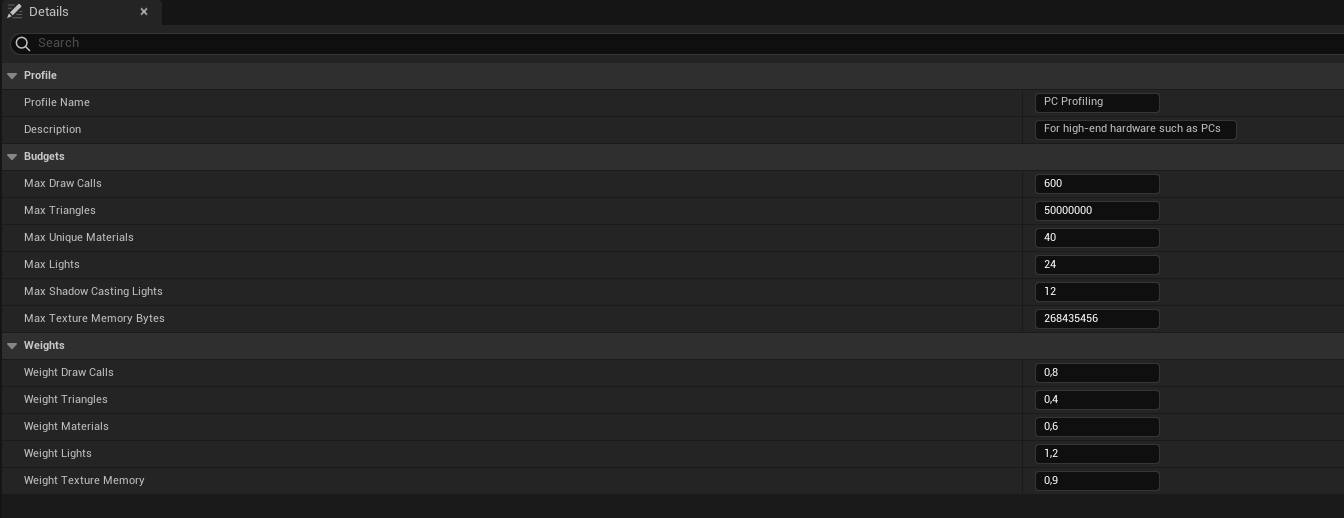
| Budget | Default | Description |
|---|---|---|
| Max Draw Calls | 300 | Estimated draw calls per cluster |
| Max Triangles | 5,000,000 | Triangle count per cluster |
| Max Unique Materials | 30 | Unique materials per cluster |
| Max Lights | 8 | Lights per cluster (all types, including directional) |
| Max Shadow-Casting Lights | 4 | Dynamic shadow casters per cluster — informational only, see note below |
| Max Texture Memory | 128 MB | Texture memory per cluster |
Only the five weighted metrics below (draw calls, triangles, materials, lights, texture memory) feed the composite score. Max Shadow-Casting Lights is stored on the profile for reference but does not currently contribute to the score or any heatmap mode.
Weights
Weights control how much each metric contributes to the composite score. A metric can be over budget but matter less (lower weight) or be weighted heavily so it dominates the color.
| Weight | Default |
|---|---|
| Draw Calls | 1.0 |
| Triangles | 1.0 |
| Materials | 0.5 |
| Lights | 0.8 |
| Texture Memory | 0.7 |
Set a weight to 0 to exclude a metric from the composite score entirely (it's still collected and shown in the table).
How the score is computed
For each weighted metric the profile computes metric / budget, multiplies by the weight, and normalizes the blend into the final composite score:
0.0→ far under budget (green)1.0→ at budget (amber)> 1.5→ critically over (red / magenta)
The same profile also normalizes the per-metric heatmap modes, so switching to, say, Lights colors each zone by light count / Max Lights.
The shipped defaults are reasonable for a mid-range PC. Always start from the preset that matches your target and adjust — a mobile title that leaves the PC budgets in place will see almost everything green and learn nothing.