Texture Retro Utility
The Texture Utility gives textures the PS1/N64 look without ever touching their pixels — it only changes how the engine samples them. Every change is reversible.
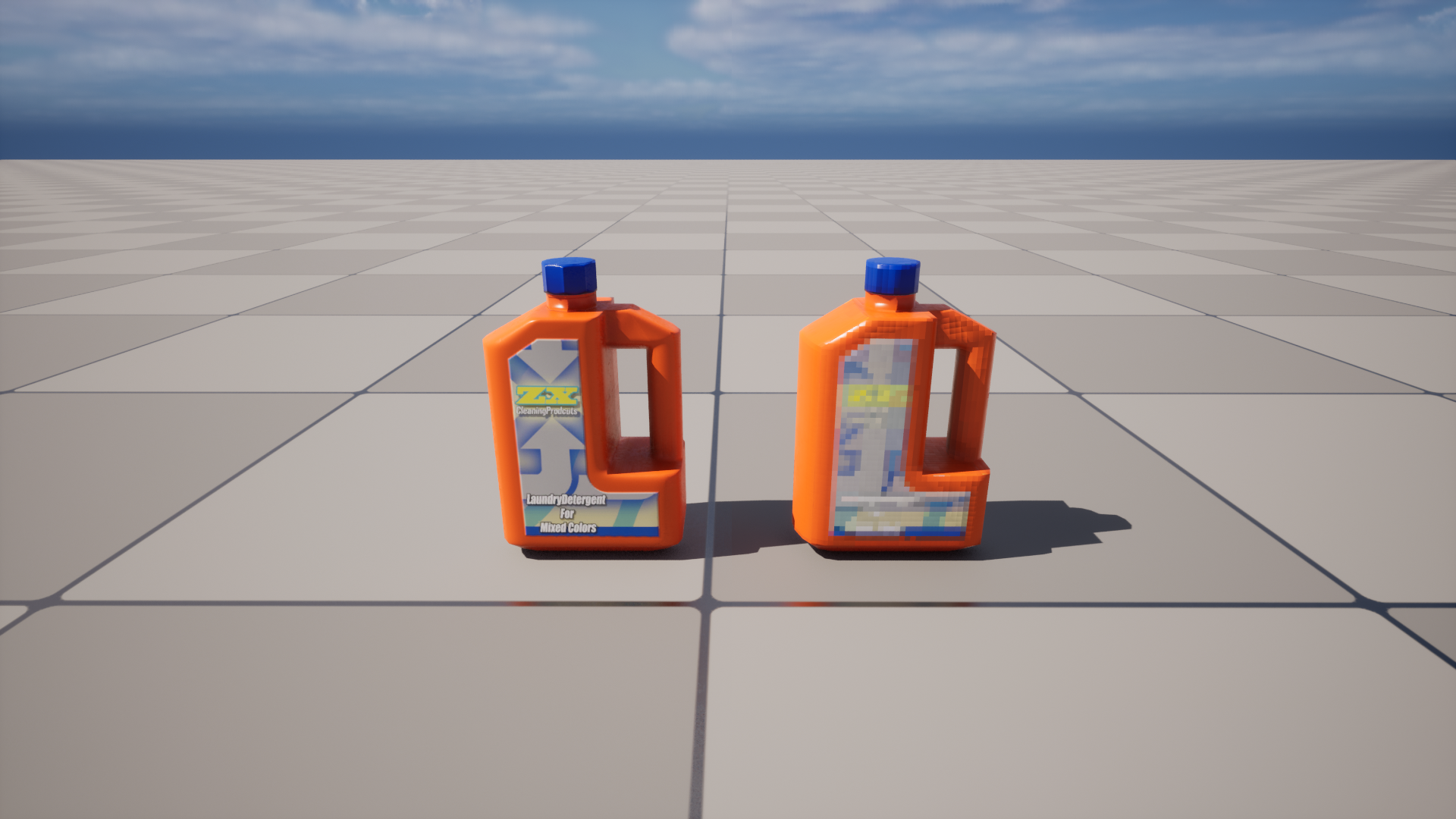
What it changes
Applying the utility sets up to three sampling properties per texture. Each can be toggled independently.
| Option | Property changed | Retro effect |
|---|---|---|
| Point Sampling | Filter = Nearest | Kills bilinear smoothing — you see crisp, square pixels up close instead of a blur. |
| Disable Mips | MipGenSettings = NoMipmaps | No distance down-sampling — textures stay sharp / shimmer at range, like the era. |
| Max Texture Size | MaxTextureSize | Clamps the resolution (e.g. 256) even if the source is 4K, for authentic low-res textures. |
Because only import/sampling settings change, there is no irreversible quality loss — these are the exact properties you could edit by hand in the Texture Editor.
Applying
- Select one or more Texture2D assets in the Content Browser.
- Open Tools → RetroRender → Textures tab.
- Set the options and click Apply Retro Textures.
The Output Log reports how many textures were processed.
Reverting
If Backup Originals was enabled (default), the utility stores each texture's original Filter, MipGenSettings and MaxTextureSize before changing them.
- Select the same textures.
- Click Revert Retro Textures.
Each texture is restored to its stored settings, and its backup entry is removed.
Backups are stored in a hidden data asset, RetroTextureBackup, created in the bake output folder (/Game/RetroBaked). Keep it around if you plan to revert later — deleting it loses the ability to restore originals.
Options
| Setting | Default | Notes |
|---|---|---|
| Point Sampling | On | Sets Filter = Nearest. |
| Disable Mips | On | Sets MipGenSettings = NoMipmaps. |
| Max Texture Size | 256 | 0 leaves the resolution unchanged. |
| Backup Originals | On | Required for Revert to work. |
Scripting
Available from the Blueprint / Python API: ApplyRetroTextures and RevertRetroTextures on URetroRenderLibrary.